
Guide · Sensitivity analysis
Sensitivity Analysis in Excel
One-way tables, tornado charts and Data Tables, step by step
How do you do a sensitivity analysis in Excel?
Give each uncertain input a low and a high value, then recalculate the output with one input at a time moved to each end while the others stay at their base values. Rank the inputs by how far the output swings, draw that ranking as a tornado chart, and use a Data Table to vary two inputs at once.
In Excel that takes six steps:
- Build the model so that every input sits in one block of cells and the output is a single cell.
- Give each input a low and a high value on a consistent basis.
- Build a one-way table: one row per input, with the output at the input's low and high values.
- Sort the rows by swing and draw them as a tornado chart.
- Use a two-way Data Table (What-If Analysis) for the two inputs that matter most, and Goal Seek for break-even values.
- Check what one-at-a-time analysis cannot see, which is where a simulation comes in.
This guide works through one example, and every number in it is in a free workbook: download it and follow along. Everything except the last step works in any version of Excel with no add-in.
What does the worked example model?
A company is deciding whether to launch a new product. The model is a five-year net present value (NPV): the initial investment at the start, then each year's cashflow of volume × (price − variable cost) − fixed costs, discounted at the cost of capital. With every input at its best guess, the base-case NPV is €155k, so the project looks worth doing. The question is which inputs could turn that into a loss, and which ones deserve more research before the decision.
| Input | Base | Low | High | Where the range comes from |
|---|---|---|---|---|
| Initial investment | €1,200k | €1,050k | €1,450k | Supplier quotes; the high end allows for a tooling rework |
| Year 1 sales volume | 20,000 | 16,000 | 24,000 | Market study: a cautious and a strong first year |
| Annual volume growth | 5% | 0% | 10% | From flat to the growth of the closest comparable product |
| Price per unit | €48 | €45 | €50 | Competitor prices; little room to go higher |
| Variable cost per unit | €28 | €26 | €33 | Material prices could rise further than they could fall |
| Fixed costs per year | €90k | €75k | €110k | Two staffing plans |
| Discount rate | 9% | 7% | 12% | The finance team's range for the cost of capital |
In the workbook the base values are named cells (Investment, Volume, Growth, Price, VarCost, Fixed and Rate), and the NPV cell is called NPV. Names make the formulas below readable, and they stop a sensitivity table from silently pointing at the wrong cell when rows are inserted.
Try it: move the inputs and watch the tornado chart
Each slider sets one input's base value, anywhere between its low and high value. The NPV and the tornado chart recalculate as you go: every bar shows the NPV with that one input at its low value (orange) or its high value (blue) while the others stay where you set them.
Four inputs can each turn it into a loss on their own: year 1 sales volume, variable cost per unit, price per unit and initial investment. Year 1 sales volume moves it most.
A tornado chart moves one input at a time. To see what happens when all seven are uncertain together, give each a PERT distribution from its low to its high value, peaking at the slider value, and simulate.
20,000 scenarios with all seven inputs moving at once. The results update as you move the sliders.
ModelRisk runs this simulation in your own Excel model and ranks the inputs in a simulation tornado chart.
Start the free trialNPV in € thousands. The simulation runs in your browser; the figures in this guide come from 2 million scenarios, so a result here can differ from them in the last digit.
How do you choose the low and high values?
Use the same definition for every input, for example a value you would be surprised to see beaten in one case out of ten at each end. A consistent definition is what makes the ranking fair. Ranges can be lopsided: here the variable cost can rise by €5 but fall by only €2, and that asymmetry is real information.
Avoid moving every input by the same ±10%. It ranks inputs by the size of their base value rather than by how uncertain they are: a discount rate of 9% ±10% moves less than one point, while the real uncertainty may be several points.
How do you build a one-way sensitivity table in Excel?
Write one row per input with its low value, its high value and the output for each. The output cell needs the model's result with that one input swapped, and there are two ways to get it.
Excel's one-variable Data Table. List the values to test down a column, put =NPV in the cell above and to the right of the first value, select both columns and choose Data → What-If Analysis → Data Table, with the input's cell as the column input cell. Excel recalculates the whole model for each value. It is the quickest way to scan one input across many values, but it needs one Data Table per input.
A formula per row. For a tornado chart it is simpler to write the output as one formula and swap one name for the low or high cell. In the workbook the base-case NPV in one line is:
For the row “Year 1 sales volume, low”, replace Volume with the cell that holds the low volume, and so on for each row. The {1,2,3,4,5} array covers the five years, so no helper columns are needed. Keep one check row with nothing swapped: it must equal the model's NPV, or the one-line formula has drifted from the model.
The result, sorted by swing (the distance between the two NPVs):
| Input | Low value → NPV | High value → NPV | Swing |
|---|---|---|---|
| Year 1 sales volume | 16,000 → −€186k | 24,000 → €496k | €682k |
| Variable cost per unit | €26 → €325k | €33 → −€271k | €597k |
| Price per unit | €45 → −€101k | €50 → €325k | €426k |
| Initial investment | €1,050k → €305k | €1,450k → −€95k | €400k |
| Annual volume growth | 0% → €6k | 10% → €319k | €313k |
| Discount rate | 7% → €232k | 12% → €52k | €180k |
| Fixed costs per year | €75k → €213k | €110k → €77k | €136k |
Four inputs can push the NPV below zero on their own: first-year volume, variable cost, price and the initial investment. Fixed costs and the discount rate matter much less within their ranges.
How do you make a tornado chart in Excel?
A tornado chart, also called a tornado diagram, is a bar chart of the one-way table, sorted so the input with the biggest swing sits at the top. Excel has no tornado chart type, but a clustered bar chart becomes one in five steps:
- Next to each input, calculate the change from the base case: NPV with input low − base NPV and NPV with input high − base NPV.
- Sort the rows by swing, largest first. In Excel 365,
=SORTBY(A2:C8,D2:D8,-1)does it with a formula; in older versions rank the swings withRANKand pull the rows back in order withINDEXandMATCH, as the workbook does, so the chart updates when an input changes. - Select the input names and the two change columns and insert a Clustered Bar chart.
- Format a data series: set Series Overlap to 100% and Gap Width to about 40%, so each input's two bars sit on one line.
- Format the vertical axis: tick Categories in reverse order to put the largest bar on top, and set Label Position to Low so the input names sit to the left, clear of the bars.
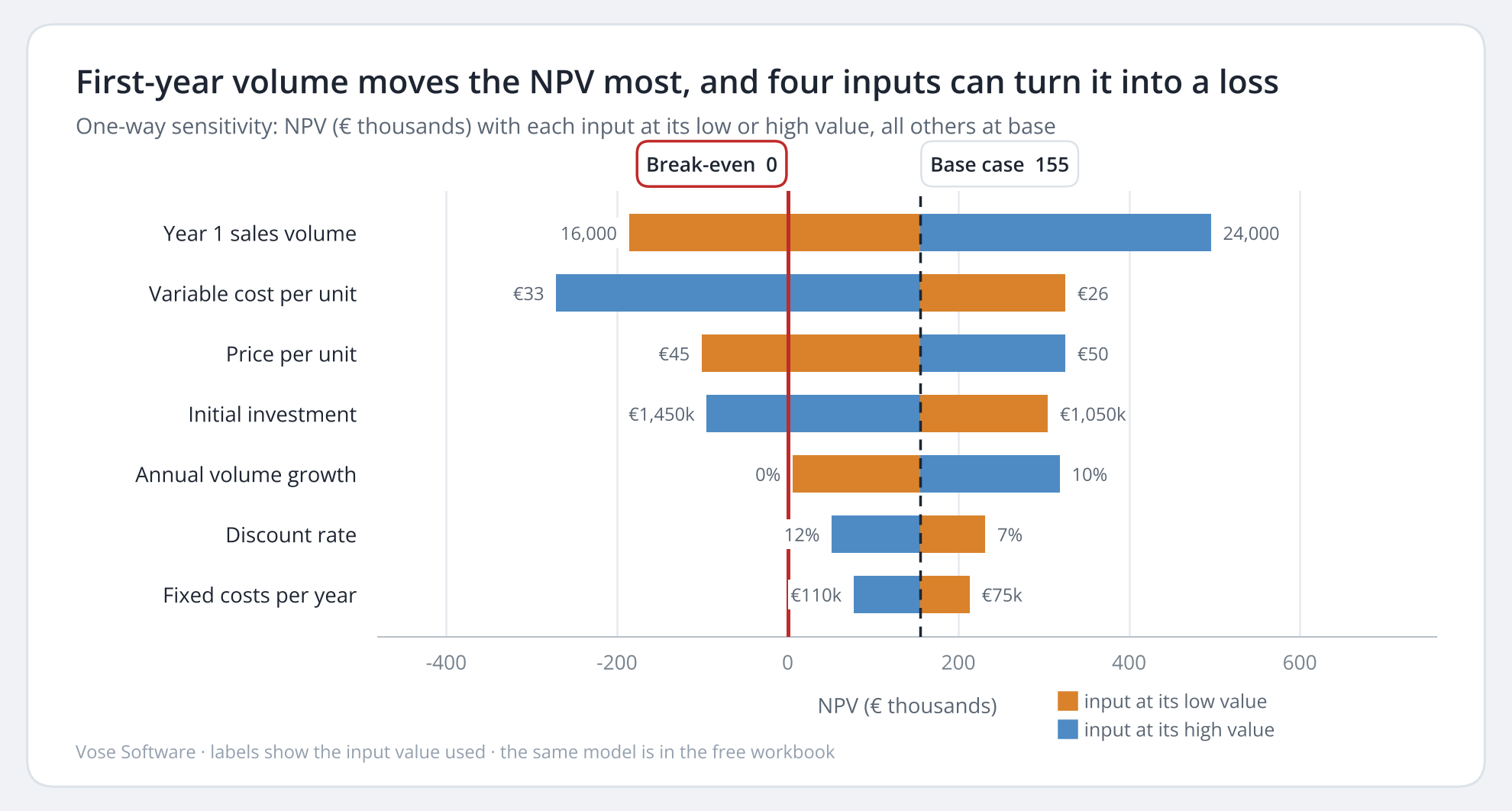
Read it from the top. The longer the bar, the more that input matters to the decision within the range you gave it. A bar that crosses the break-even line belongs to an input that can turn the project into a loss on its own. Here that is the first-year volume, the variable cost, the price and the investment, so they are where better data is worth paying for.
This is a deterministic tornado chart: it moves one input at a time. A tornado chart from a Monte Carlo simulation ranks the inputs with all of them varying together, and it can rank them differently.
How do you make a two-way sensitivity table with Excel's Data Table?
Put a reference to the output in a corner cell, one input's test values across the row to its right and the other input's values down the column below it. Select the whole block, choose Data → What-If Analysis → Data Table, and give the input cell for the row values and the one for the column values.
In the workbook the corner cell holds =NPV, the row holds first-year volumes and the column holds prices. The row input cell is the base volume and the column input cell is the base price. Two rules trip people up: the input cells must be on the same sheet as the Data Table, and Excel fills the table with a {=TABLE(…)} array that can't be edited cell by cell.
NPV (€k) by price per unit and first-year sales volume
| Price ↓ Volume → | 14,000 | 16,000 | 18,000 | 20,000 | 22,000 | 24,000 | 26,000 |
|---|---|---|---|---|---|---|---|
| €44 | −595 | −459 | −322 | −186 | −50 | 87 | 223 |
| €45 | −536 | −391 | −246 | −101 | 44 | 189 | 334 |
| €46 | −476 | −322 | −169 | −16 | 138 | 291 | 445 |
| €47 | −416 | −254 | −92 | 70 | 232 | 394 | 556 |
| €48 | −357 | −186 | −16 | 155 | 325 | 496 | 666 |
| €49 | −297 | −118 | 61 | 240 | 419 | 598 | 777 |
| €50 | −237 | −50 | 138 | 325 | 513 | 701 | 888 |
| €51 | −178 | 19 | 215 | 411 | 607 | 803 | 999 |
| €52 | −118 | 87 | 291 | 496 | 701 | 905 | 1,110 |
Red figures are losses, and the bold figure is the base case. The line between the red and the black is the trade-off the decision turns on: at €48 the product needs a little over 18,000 units in its first year to break even, and every euro off the price adds roughly 1,000 units to that.
Data Tables recalculate the whole model for every cell, so a large model with several of them gets slow. If yours show zeros or stale values, Excel is probably set to Automatic except for data tables: press F9, or change it under Formulas → Calculation Options.
How far can each input move before the NPV reaches zero?
Use Goal Seek. Choose Data → What-If Analysis → Goal Seek, set the NPV cell to 0 by changing one input, note the value it finds, then undo and repeat for the next input. The break-even value, sometimes called the switching value, says how much room each input has.
How far each input can move before the NPV turns negative
Price has the least room: a 3.8% cut wipes out the €155k NPV.
Also: the discount rate can rise 4.7 points, to 13.7%. With no volume growth at all, the NPV stays positive.
See the numbers
| Input | Base | Break-even value | Room before a loss |
|---|---|---|---|
| Price per unit | €48 | €46.18 | −3.8% |
| Year 1 sales volume | 20,000 | 18,182 | −9.1% |
| Variable cost per unit | €28 | €29.82 | +6.5% |
| Initial investment | €1,200k | €1,355k | +12.9% |
| Fixed costs per year | €90k | €130k | +44% |
| Discount rate | 9% | 13.7% | +4.7 points |
| Annual volume growth | 5% | −0.2% | NPV stays positive even with no growth |
Price has the least room: a 4% cut wipes out the NPV. The tornado chart ranks volume first because its range is wider, while break-even values ignore the ranges altogether. Both views are worth having, and neither says how likely any of these outcomes is.
What can't a sensitivity table tell you?
It can't tell you how likely a loss is. It moves one input at a time, so it never sees several inputs going wrong together, and it reports the base case as if it were the expected outcome. When most ranges lean towards the bad side, as they do here, the base case is optimistic.
To see all of that, give every input a distribution between its low and high values and let a Monte Carlo simulation vary them all at once. With PERT distributions on the same ranges, the example gives:
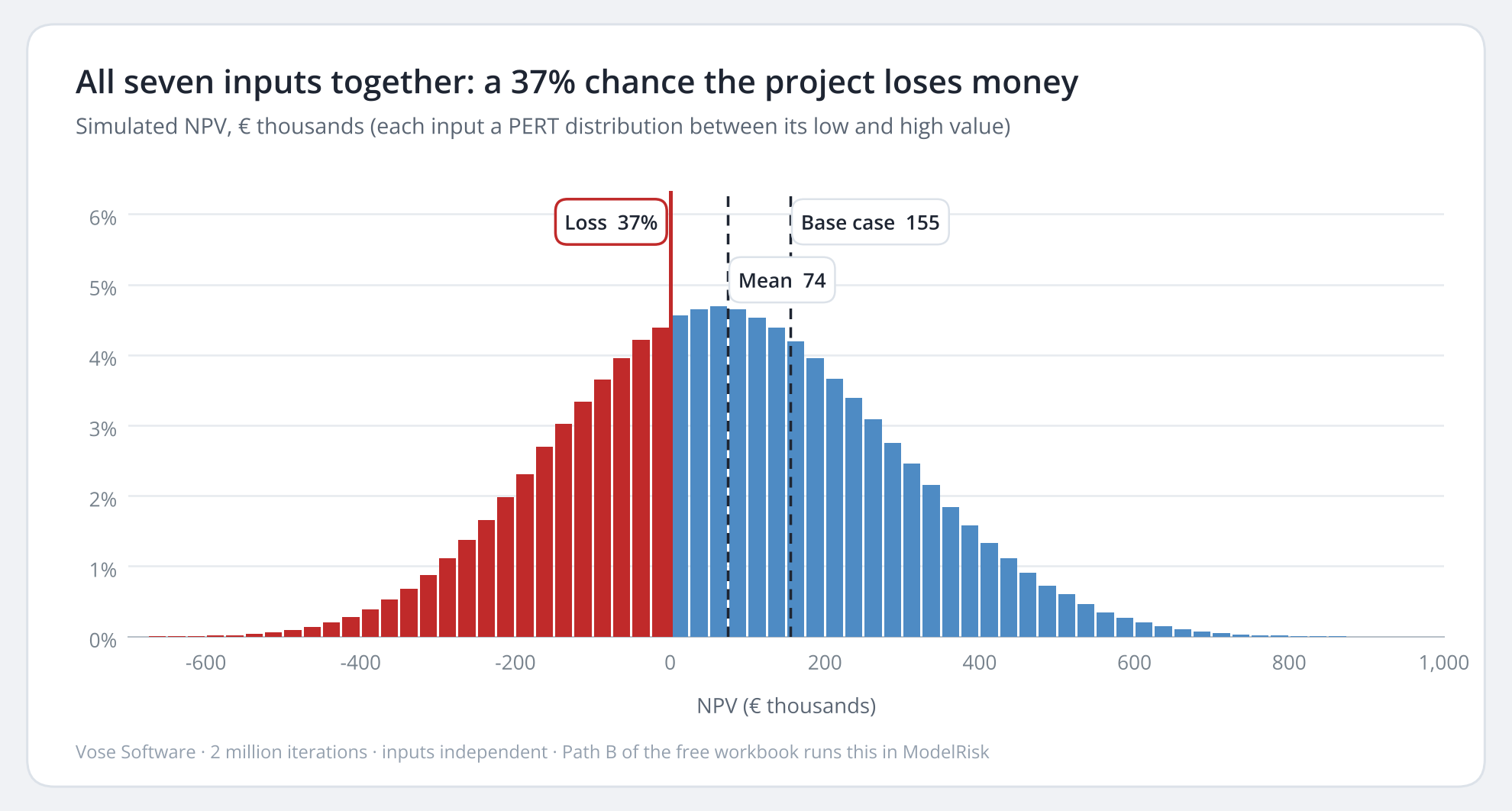
The mean NPV is about €74k, half the base case, and there is a 37% chance of losing money. One project in ten would end below −€194k and one in ten above €348k. None of that is visible in the one-way table, the tornado chart or the Data Table, because each of them only ever moves one or two inputs.
One simplification: the low and high values are one-in-ten values, not true extremes, so using them as the minimum and maximum of each PERT makes the spread too narrow. The real chance of a loss is, if anything, higher than 37%.
Which method answers which question?
Which method answers which question
One-way table and tornado chart
Which inputs move the output most within their ranges?
Excel tool
Formulas or a one-variable Data Table, and a bar chart
What it misses
Inputs moving together; probability
Two-way Data Table
How do two inputs trade off against each other?
Excel tool
What-If Analysis → Data Table
What it misses
The other inputs; probability
Break-even (Goal Seek)
How far can one input move before the decision flips?
Excel tool
What-If Analysis → Goal Seek
What it misses
How likely that move is
Scenario analysis
What happens in a few named cases, such as a recession case?
Excel tool
What-If Analysis → Scenario Manager
What it misses
Everything between and beyond the chosen cases
Monte Carlo simulation
How likely is each outcome, and which inputs drive the spread?
Excel tool
Plain formulas for small models, or an add-in
What it misses
Only what the model itself leaves out
How do you get a simulation tornado chart with an add-in?
In ModelRisk, replace each input with a distribution, mark it with VoseInput and mark the NPV with VoseOutput. For the volume, for example: =VoseInput("Year 1 sales volume")+VosePERT(16000,20000,24000). Run the simulation, then choose Insert → Tornado → Conditional Mean in the Results Viewer. It ranks the inputs by how much each one moves the mean NPV across its range, with all the others still varying.
The workbook's Path B sheet is this model, set up for ModelRisk, with a table of reference results to check your run against. Our article on reading tornado charts from a simulation covers the traps that make them mislead. ModelRisk is one of several Excel add-ins that do this; our comparison of risk analysis add-ins for Excel covers features and published prices side by side.
What is in the free workbook?
- Model: the seven inputs with their low and high values, the five-year cashflow, the NPV, and the two-way Data Table of price against volume.
- One-way and tornado: the one-way table, the sorted table and the tornado chart, all driven by formulas, so they update when you change an input.
- Path B: ModelRisk: the same model with every input uncertain at once, ready to simulate, with reference results from a two-million-iteration run.
Download the sensitivity analysis in Excel workbook (.xlsx). It is free and needs no registration. To run Path B, start the free 15-day ModelRisk trial. The trial is fully functional.
Articles
Keep reading

ModelRisk
Adding risk and uncertainty to your Excel model
Simulate every input at once, see the chance of a loss, and rank what drives it with tornado and spider charts, inside the spreadsheet you already use. Try it free for 15 days.